Set up your PC for local AI on an AMD Radeon card
BIOS and Windows settings for local AI on a Radeon card: Resizable BAR, the PCIe link, drivers and power, and what to do when the PC is unstable.
Turn on Resizable BAR, put the card in its full-width slot with the link speed on Auto, and keep the whole model in the card’s own memory. Do that, and the PCIe generation barely changes how fast a model answers: your drive sets how long a model takes to load, and the link matters a lot only when part of a model sits in system memory. If the PC is unstable, work through the troubleshooting order further down, one change at a time.
At a glance
- Resizable BAR on: CSM off, Above 4G Decoding on, Re-Size BAR on. It matters most for llama.cpp’s Vulkan engine.
- PCIe slot: the slot your manual lists as x16, link speed on Auto. If the PC is unstable, or the link reads low while the card is busy, follow the troubleshooting order.
- Loading (calculated): the 16.46 GB RX 7900 XTX model needs at least 2.4 s from a PCIe 4.0 NVMe drive and 29.9 s from a SATA SSD, on any x16 link.
- Answers, whole model on the card (calculated): the link carries about 1 MB per request, well under a thousandth of a second at any PCIe generation.
- Weights in system memory: llama.cpp copies them over the link for every 512 prompt tokens, so a slow link can add seconds or minutes before the first word. FastLLM’s recipes keep the whole model on the card.
- Driver: AMD Software: Adrenalin Edition. The HIP engine needs the driver AMD lists for its ROCm release.
- Leave alone: the GPU timeout (TDR), the page file (system-managed) and memory integrity.
- Power: at least AMD’s recommended power supply. Inference holds the card at high load for long periods.
How to read this page
These are the PC settings that affect speed and stability when you run a language model on an AMD Radeon card under Windows 11. They apply to local engines built on llama.cpp. FastLLM, which is in development, checks some of them for you. Each statement says where it comes from:
| Label | What it means |
|---|---|
| On our test PCs | What we saw on our own test PCs. Measured results appear on the recipe pages, not here. |
| Vendor documentation | What AMD, Microsoft, a motherboard maker or a tool’s developer states, with a link. |
| Reported by users | A public report we have not reproduced, with a link. |
| Our recommendation | Our judgment where no measurement settles the question. |
| Calculated | Arithmetic from published specifications and stated assumptions, with the formula. It gives a lower bound, not a measurement. |
Quick checklist
| Setting | What we recommend | Why |
|---|---|---|
| Resizable BAR | On: CSM off, Above 4G Decoding on, Re-Size BAR Support on | Engines run best with it on. FastLLM has a fallback if it is off |
| PCIe slot | The slot your manual lists as x16, link speed on Auto | The link sets how fast a model copies to the card and how fast any work shared with the CPU runs |
| PCIe generation | Auto; one generation lower only to fix a problem | Some risers, and some board firmware, can’t hold the top speed |
| Motherboard BIOS | The latest from your board maker | Updates have fixed PCIe link problems on some boards |
| PCIe power management | Leave at the default | Turning it off is a test users report, not a vendor fix |
| Drive | An NVMe SSD for your model files | On an x16 card the drive, not the link, sets how long a model takes to load |
| AMD driver | AMD Software: Adrenalin Edition; we use the Minimal install | The HIP engine needs the driver AMD lists for its ROCm version |
| GPU timeout (TDR) | Leave at the Windows default | Microsoft says end users shouldn’t change these registry keys |
| Page file | System-managed | Windows’ memory limit is system memory plus the page file |
| Second graphics device | Check which device the engine uses | A model can land on a device you didn’t intend |
| Power supply | At least AMD’s recommendation for your card | Inference holds the card at high load for long periods |
Resizable BAR
What it is
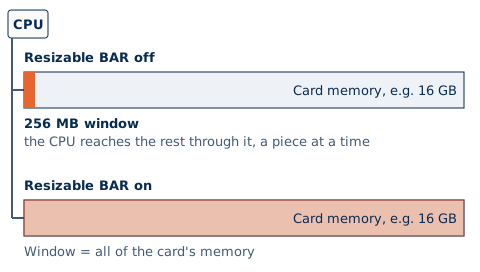
For compatibility with 32-bit systems, a graphics card normally gives the CPU a 256 MB window onto its memory. With Resizable BAR, Windows resizes that window to expose all of the card’s memory (Microsoft). Smart Access Memory (SAM) is AMD’s name for it on Ryzen and Radeon systems (AMD); Intel-based boards offer the same setting (ASUS). It needs support from the motherboard BIOS, the card’s firmware and the driver (ASUS).
Why it matters for local AI
By default, llama.cpp’s Vulkan engine asks for card memory that the CPU can also reach, the “rebar” memory type, and falls back to memory only the card can reach. The GGML_VK_DISABLE_HOST_VISIBLE_VIDMEM setting makes it use card-only memory from the start (llama.cpp source, build b10698).
On our test PCs. Our test PCs now run with Resizable BAR on. Earlier, on a test PC with it off (an RX 7900 XTX), llama.cpp’s Vulkan engine at its default settings processed prompts far more slowly, and generated text more slowly, than with the setting above applied. The slowdown varied between runs, and the same PC sometimes ran at normal speed. The lab observation for that card was measured with the setting applied.
Not yet measured. We have not yet compared that card with Resizable BAR on against the workaround, so we can’t say which is faster, or by how much. We also have not measured whether Resizable BAR changes speed on the HIP engine.
Reported by users. A llama.cpp issue reports that, on Linux, a large drop in prompt speed on long prompts went away after Resizable BAR was turned on. Other users in the same issue saw a similar drop with it already on.
Our recommendation. Turn Resizable BAR on and check that it is on (below). This is the setting our test PCs use.
Before you start: check how Windows boots
- Check the boot mode. Run System Information (msinfo32). BIOS Mode should read UEFI, not Legacy (ASUS).
- Check the disk. In Disk Management, open the Windows disk’s Properties, then the Volumes tab. Partition style should read GUID Partition Table (GPT) (Microsoft).
- Convert only if needed. If BIOS Mode reads Legacy or the disk is MBR, Microsoft’s MBR2GPT tool converts the Windows disk to GPT; afterwards the BIOS must be set to start in UEFI mode. Suspend BitLocker first, and back up before you convert (Microsoft).
Turn it on in the BIOS
Option names and menus differ between motherboard makers and BIOS versions. This drawing shows the three settings on a typical UEFI BIOS:
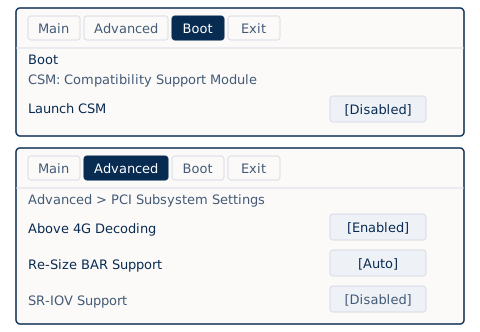
- CSM (Compatibility Support Module): Disabled. Usually on the Boot tab; some makers call it Launch CSM or CSM Support.
- Above 4G Decoding: Enabled. Lets 64-bit capable devices, such as the graphics card, be mapped above the 4 GB address space.
- Re-Size BAR Support: Auto or Enabled. The values differ by maker. On some boards it appears only after Above 4G Decoding is enabled.
Sources: CSM, AMD and ASRock; Above 4G Decoding and when Re-Size BAR appears, ASUS AM5 BIOS manual, p.50; Re-Size BAR values, ASUS and MSI.
- Update the BIOS. Install the latest BIOS for your motherboard (ASUS).
- Turn CSM off. In the Boot menu, set CSM or Launch CSM to Disabled.
- Turn on Above 4G Decoding. Set it to Enabled.
- Turn on Resizable BAR. Set Re-Size BAR Support to Auto or Enabled. ASRock calls it C.A.M.; ASUS’s simple BIOS view has a single Resize BAR switch (ASRock, ASUS).
- Save and exit. AMD’s driver turns Smart Access Memory on during installation on compatible systems (AMD).
Where each maker puts them, from its own manual or support page. Menus vary by board and BIOS version, so your own board’s manual is the one to follow.
ASUS
| Setting | Where |
|---|---|
| CSM | Boot › CSM › Launch CSM: Disabled (AMD 600 Series BIOS manual, p.82) |
| Above 4G Decoding | Advanced › PCI Subsystem Settings › Above 4G Decoding: Enabled (same manual, p.50) |
| Resizable BAR | Same menu › Re-Size BAR Support: Enabled, shown once Above 4G Decoding is on (p.50). EZ Mode also has a Resize BAR switch (ASUS) |
| PCIe slot speed | Advanced › Onboard Devices Configuration › PCIE Link Speed › PCIEX16_1 Link Mode (p.58); on B550 boards, PCIEX16_1 Mode (B550 / A520 Series BIOS manual, p.29) |
MSI
| Setting | Where |
|---|---|
| CSM | Settings › Advanced › BIOS CSM/UEFI Mode: UEFI (Intel 700 Series BIOS manual, p.24) |
| Above 4G Decoding | Settings › Advanced › PCI Subsystem Settings › Above 4G memory/Crypto Currency mining: Enabled (Enabling Resizable BAR guide, p.13) |
| Resizable BAR | Same menu › Re-Size BAR Support: Enabled (guide, p.13; manual, p.14) |
| PCIe slot speed | Settings › Advanced › PCIe/PCI Sub-system Settings › PCIE_E1 – Max Link Speed (manual, p.13) |
Gigabyte
| Setting | Where |
|---|---|
| CSM | Boot › CSM Support: Disabled (Z790 AORUS XTREME X ICE BIOS manual, p.28; B550M DS3H manual, p.34) |
| Above 4G Decoding | Settings › IO Ports › Above 4G Decoding: Enabled (Z790 manual, p.19; B550M DS3H manual, p.28) |
| Resizable BAR | Settings › IO Ports › Re-Size BAR Support (Z790 manual, p.20) |
| PCIe slot speed | Settings › Miscellaneous › CPU PCIe Link Speed (Z790 manual, p.23); on the B550M DS3H, PCIe Slot Configuration (p.30) |
ASRock
| Setting | Where |
|---|---|
| CSM | Boot › CSM: Disabled (ASRock) |
| Above 4G Decoding | Advanced › Chipset Configuration › Above 4G Decoding: Enabled (ASRock) |
| Resizable BAR | Advanced › Chipset Configuration › C.A.M. (Clever Access Memory): Enabled (ASRock) |
| PCIe slot speed | Advanced › Chipset Configuration › PCIE1 Link Speed (ASRock) |
Here is the same change on an ASRock board, from ASRock’s own support page. First, CSM on the Boot tab:
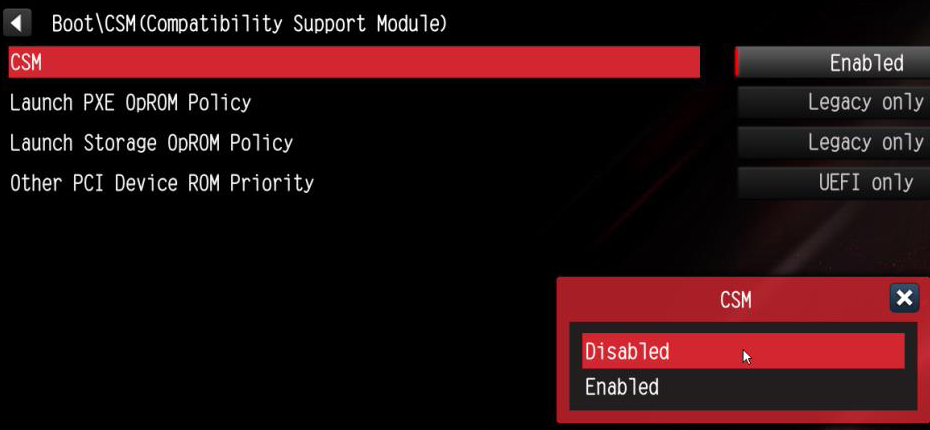
- Path. Boot\CSM(Compatibility Support Module).
- CSM. The row still reads Enabled until you confirm the change.
- Disabled. Choose it in the CSM list, then save and exit.
Screenshot: ASRock, How to enable C.A.M in the BIOS? Also known as Resizable BAR.
Then Above 4G Decoding and C.A.M., ASRock’s name for Resizable BAR, under Chipset Configuration:
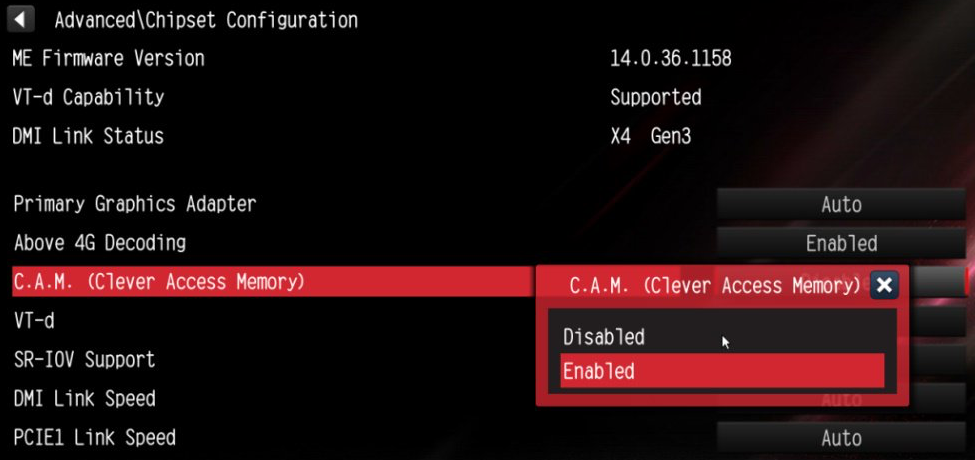
- Path. Advanced\Chipset Configuration.
- Above 4G Decoding. Reads Enabled.
- C.A.M. (Clever Access Memory). ASRock’s name for Resizable BAR. Choose Enabled.
- PCIE1 Link Speed. The per-slot link speed setting. Leave it on Auto (see “Troubleshooting an unstable PC” below).
Screenshot: ASRock, How to enable C.A.M in the BIOS? Also known as Resizable BAR.
Check that it is on
- GPU-Z. TechPowerUp’s GPU-Z shows whether Resizable BAR is supported and enabled in its main window (TechPowerUp). ASUS suggests running it as administrator (ASUS).
- Device Manager. Under Display adapters, open your Radeon card’s Properties, then Resources. A Large Memory Range entry means it is on (MSI).
- AMD Software. Search for “Tuning” and open Performance Tuning to see the Smart Access Memory switch. AMD says this page comes only with the full installation (AMD), so a Minimal install doesn’t have it; use GPU-Z instead.
- FastLLM. FastLLM reports its own result when it starts a model on the Vulkan engine.
AMD lists a known issue in which Smart Access Memory may turn off after a driver install on Windows 10 (AMD). Check again after you update the driver.
Loading a model: your drive first, then the link
The card connects to the motherboard over a PCIe link with a generation and a number of lanes. A link runs at the lower generation and the narrower width of the card and the slot, and a full-length slot is not always wired for x16: your motherboard manual lists the lanes for each slot. AMD lists PCIe 5.0 x16 for the RX 9000 and Radeon AI PRO cards; TechPowerUp lists PCIe 4.0 x16 for most RX 6000 and RX 7000 cards, x8 for the RX 6600 family, RX 7600 and RX 7600 XT, and x4 for the RX 6400 and RX 6500 XT (sources in “Settings by card” below).
Calculated. Bandwidth in each direction: transfer rate × 128/130 (the link’s encoding) ÷ 8 bits × lanes. Intel’s PCIe table lists the same figures.
| Link | PCIe 3.0 | PCIe 4.0 | PCIe 5.0 |
|---|---|---|---|
| x4 | 3.9 GB/s | 7.9 GB/s | 15.8 GB/s |
| x8 | 7.9 GB/s | 15.8 GB/s | 31.5 GB/s |
| x16 | 15.8 GB/s | 31.5 GB/s | 63.0 GB/s |
A model file travels from your drive, through system memory, over the link to the card. By default llama.cpp memory-maps the model file, so Windows reads it through system memory while the model loads (llama.cpp docs). The slower of the drive and the link sets the pace:
- Drive. The model file is read from your SSD.
- System memory. Windows keeps the file in memory while it loads, and keeps it there for a later load if memory allows.
- PCIe link. The engine copies the weights to the card, once per load.
- Card memory. From now on, prompt processing and text generation read the weights from the card’s own memory.
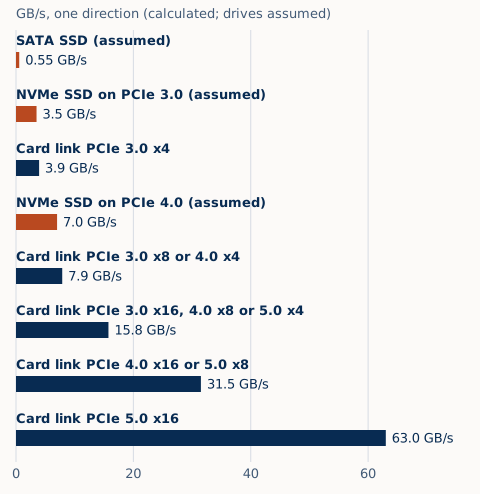
We assume these drive speeds. They are typical rated sequential reads; real drives vary, and file-system work makes loads slower. SATA 6Gb/s carries at most about 0.6 GB/s (SATA-IO); an NVMe drive uses its own PCIe x4 link, 3.9 GB/s at PCIe 3.0 and 7.9 GB/s at PCIe 4.0.
Calculated. Drive speeds are our assumptions; link figures as above.
| Drive or link | GB/s | Seconds per GB |
|---|---|---|
| SATA SSD (assumed) | 0.55 | 1.8 |
| NVMe SSD on PCIe 3.0 (assumed) | 3.5 | 0.29 |
| Card link PCIe 3.0 x4 | 3.9 | 0.25 |
| NVMe SSD on PCIe 4.0 (assumed) | 7.0 | 0.14 |
| Card link PCIe 3.0 x8 or 4.0 x4 | 7.9 | 0.13 |
| Card link PCIe 3.0 x16, 4.0 x8 or 5.0 x4 | 15.8 | 0.06 |
| Card link PCIe 4.0 x16 or 5.0 x8 | 31.5 | 0.03 |
| Card link PCIe 5.0 x16 | 63.0 | 0.02 |
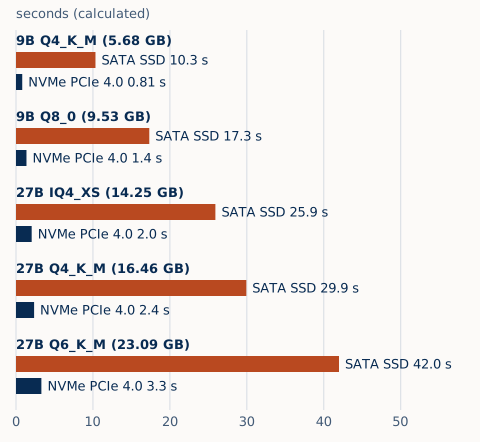
Here is what that means for the model each card’s FastLLM recipe uses. On an x16 link the drive is always the slower part, so these times are the same at PCIe 3.0, 4.0 and 5.0.
Calculated. Minimum seconds: file size ÷ the slower of drive and link, at PCIe 4.0 x16.
| Model file (cards) | Size | SATA SSD | NVMe, PCIe 3.0 | NVMe, PCIe 4.0 |
|---|---|---|---|---|
| Qwen3.5-9B Q4_K_M (RX 9060 XT 8GB) | 5.68 GB | 10.3 s | 1.6 s | 0.81 s |
| Qwen3.5-9B Q8_0 (RX 9060 XT 16GB, RX 9070, RX 9070 XT, RX 7800 XT) | 9.53 GB | 17.3 s | 2.7 s | 1.4 s |
| Qwen3.8-27B UD-IQ4_XS (RX 7900 XT) | 14.25 GB | 25.9 s | 4.1 s | 2.0 s |
| Qwen3.8-27B UD-Q4_K_M (RX 7900 XTX) | 16.46 GB | 29.9 s | 4.7 s | 2.4 s |
| Qwen3.8-27B UD-Q6_K_M (Radeon AI PRO R9700) | 23.09 GB | 42.0 s | 6.6 s | 3.3 s |
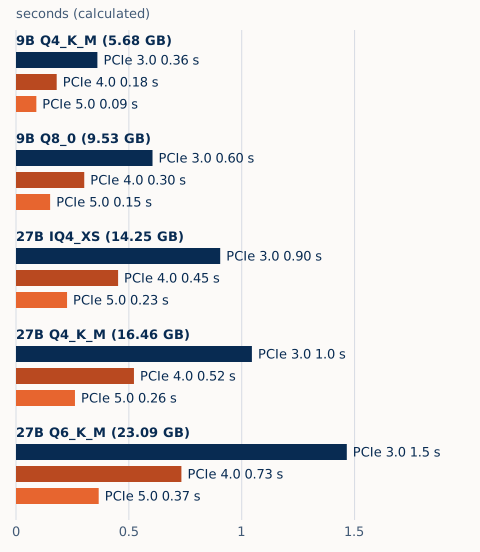
The link becomes the limit once Windows already has the file in memory, for example when you load the same model again, and then the PCIe generation shows:
Calculated. Minimum seconds: file size ÷ link bandwidth, x16 link, file already in system memory.
| Model file | PCIe 3.0 x16 | PCIe 4.0 x16 | PCIe 5.0 x16 |
|---|---|---|---|
| Qwen3.5-9B Q4_K_M | 0.36 s | 0.18 s | 0.09 s |
| Qwen3.5-9B Q8_0 | 0.60 s | 0.30 s | 0.15 s |
| Qwen3.8-27B UD-IQ4_XS | 0.90 s | 0.45 s | 0.23 s |
| Qwen3.8-27B UD-Q4_K_M | 1.0 s | 0.52 s | 0.26 s |
| Qwen3.8-27B UD-Q6_K_M | 1.5 s | 0.73 s | 0.37 s |
Time to first token with the whole model on the card
With the whole model on the card, PCIe generation changes time to first token by less than a thousandth of a second. It matters for loading, and a lot when part of the model sits in system memory (next section).
Once a model is loaded, the card reads its weights from its own memory. AMD lists that memory at up to 128 GB/s on the RX 6400 and up to 960 GB/s on the RX 7900 XTX (AMD RX 6400, AMD RX 7900 XTX), far more than any PCIe link. All that crosses the link for a request is the prompt’s token numbers going in (4 bytes per token) and one row of scores over the model’s 248,320-entry vocabulary coming back for each new token (4 bytes per entry, from the model’s config).
Calculated. A 4,096-token prompt in, the first token’s scores out; data ÷ link bandwidth.
| Link | Data in | Data out | Time on the link |
|---|---|---|---|
| PCIe 3.0 x4 | 16 KB | 0.99 MB | 0.0003 s |
| PCIe 3.0 x16 | 16 KB | 0.99 MB | 0.00006 s |
| PCIe 4.0 x16 | 16 KB | 0.99 MB | 0.00003 s |
| PCIe 5.0 x16 | 16 KB | 0.99 MB | 0.00002 s |
On our test PCs. Our lab observations measured time to first text with the whole model on the card for the RX 7900 XT on Vulkan, RX 7900 XT on HIP, RX 7900 XTX on Vulkan and RX 7900 XTX on HIP. That time is the card working through the prompt in its own memory. AMD’s driver reported a PCIe 4.0 x16 link for these cards on our test PCs.
Not yet measured. We have not measured the same card at different PCIe settings. We found no llama.cpp documentation that quantifies the link’s effect in this case; the calculation above is why we expect none worth noticing.
If part of the model sits in system memory
When weights sit in system memory, llama.cpp doesn’t simply run those layers on the CPU while it processes a prompt. It moves the work to the card and copies the weights over the link each time (“op offload”, on by default; --no-op-offload turns it off). We checked this in the source of both llama.cpp builds FastLLM uses, b10698 (Vulkan) and b11658 (HIP):
- Split the prompt. The prompt is processed in micro-batches of 512 tokens, the default
-ub(common.h). - Move the work. Any operation that uses weights in system memory and handles 32 or more tokens is sent to the card (scheduler, Vulkan, HIP).
- Copy the weights. Those weights cross the PCIe link for this micro-batch.
- Repeat. The next micro-batch copies them again (decode loop).
- Generate. New tokens come one at a time, below the 32-token threshold, so those layers then run on the CPU from system memory.
So the link adds at least: number of micro-batches × bytes in system memory ÷ link bandwidth. Real copies are slower than the link’s rated speed, and the CPU-side layers add work we don’t calculate, so actual times are longer.
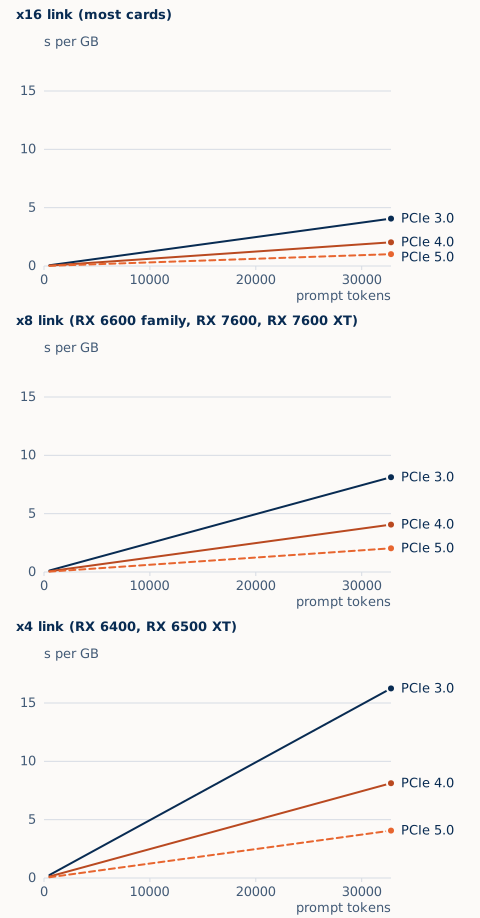
Two worked examples. The first is any model with 5 GB of its layers in system memory. The second is Qwen3.6-35B-A3B, a mixture-of-experts model, in Unsloth’s third-party UD-Q4_K_M conversion. It is not a FastLLM recipe. Its 22.13 GB file holds 19.57 GB of expert weights across 40 layers (read from the file’s header), and 2.56 GB of everything else. --cpu-moe keeps all the experts in system memory; --n-cpu-moe 20 keeps those of the first 20 layers, 9.73 GB (llama.cpp options).
Calculated. Minimum extra seconds before the first token, 4,096-token prompt, default 512-token micro-batch.
| Link | 5 GB of layers | Experts of 20 layers | All experts |
|---|---|---|---|
| PCIe 5.0 x16 | 0.63 s | 1.2 s | 2.5 s |
| PCIe 4.0 x16 | 1.3 s | 2.5 s | 5.0 s |
| PCIe 3.0 x16 | 2.5 s | 4.9 s | 9.9 s |
| PCIe 3.0 x8 | 5.1 s | 9.9 s | 19.9 s |
| PCIe 3.0 x4 | 10.2 s | 19.8 s | 39.7 s |
Calculated. The same at 32,768 prompt tokens.
| Link | 5 GB of layers | Experts of 20 layers | All experts |
|---|---|---|---|
| PCIe 5.0 x16 | 5.1 s | 9.9 s | 19.9 s |
| PCIe 4.0 x16 | 10.2 s | 19.8 s | 39.7 s |
| PCIe 3.0 x16 | 20.3 s | 39.5 s | 79.5 s |
| PCIe 3.0 x8 | 40.6 s | 79.1 s | 159 s |
| PCIe 3.0 x4 | 81.3 s | 158 s | 318 s |
llama.cpp copies only the experts a micro-batch uses (b10698, b11658). That saves little during a prompt: each token picks 8 of this model’s 256 experts in every layer, so a full micro-batch uses practically all of them.
Calculated. Share of experts a micro-batch uses, 1 − (1 − 8/256)^tokens, assuming tokens pick experts evenly and independently (an approximation).
| Tokens in the micro-batch | Experts used |
|---|---|
| 32 | 64% |
| 128 | 98% |
| 512 | 100% |
A larger micro-batch means fewer copies. -ub 2048 (the default batch size is already 2,048) copies the weights a quarter as often, at the cost of a larger working buffer on the card.
Calculated. Minimum extra seconds for a 4,096-token prompt at three micro-batch sizes.
| In system memory | Link | -ub 512 |
-ub 1024 |
-ub 2048 |
|---|---|---|---|---|
| 5 GB of layers | PCIe 4.0 x16 | 1.3 s | 0.63 s | 0.32 s |
| 5 GB of layers | PCIe 3.0 x8 | 5.1 s | 2.5 s | 1.3 s |
| All experts (19.57 GB) | PCIe 4.0 x16 | 5.0 s | 2.5 s | 1.2 s |
| All experts (19.57 GB) | PCIe 3.0 x8 | 19.9 s | 9.9 s | 5.0 s |
Memory on the card
What a recipe needs on the card is more than the model file. There is the context memory, the KV cache and recurrent state that grow with the context length, and llama.cpp’s compute buffers. FastLLM’s catalog sets a requirement for each model that covers all of it. The chart splits that requirement: the weights, the context memory calculated from each model’s own configuration, and the rest, the compute buffers and FastLLM’s reserve.
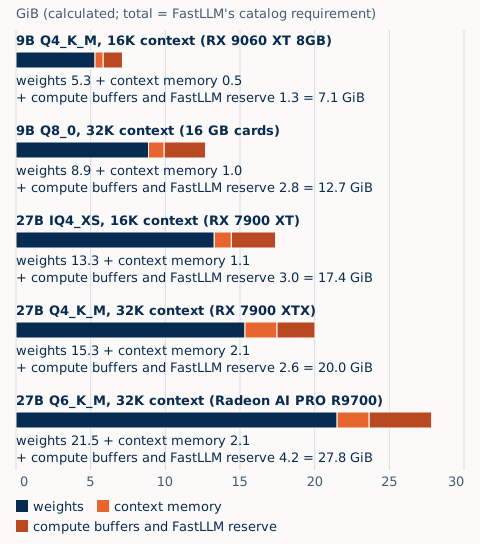
Calculated. GiB (1 GiB = 1,073,741,824 bytes); recurrent state in MiB. The total is FastLLM’s catalog requirement for each recipe.
| Model | Context | Weights | KV cache | Recurrent state | Compute buffers and FastLLM reserve | FastLLM’s catalog requirement |
|---|---|---|---|---|---|---|
| Qwen3.5-9B Q4_K_M | 16,384 tokens | 5.3 GiB | 0.50 GiB | 50 MiB | 1.3 GiB | 7.1 GiB |
| Qwen3.5-9B Q8_0 | 32,768 tokens | 8.9 GiB | 1.00 GiB | 50 MiB | 2.8 GiB | 12.7 GiB |
| Qwen3.8-27B UD-IQ4_XS | 16,384 tokens | 13.3 GiB | 1.00 GiB | 150 MiB | 3.0 GiB | 17.4 GiB |
| Qwen3.8-27B UD-Q4_K_M | 32,768 tokens | 15.3 GiB | 2.00 GiB | 150 MiB | 2.6 GiB | 20.0 GiB |
| Qwen3.8-27B UD-Q6_K_M | 32,768 tokens | 21.5 GiB | 2.00 GiB | 150 MiB | 4.2 GiB | 27.8 GiB |
Why the context memory is small: these Qwen models keep a KV cache in only one layer in four. Qwen3.8-27B has 16 full-attention layers out of 64; the other 48 use linear attention with a fixed-size state (config). Qwen3.5-9B has 8 of 32 (config). Each full-attention layer stores 4 key and 4 value heads of 256 numbers per token, at 2 bytes each in FastLLM’s recipes.
Calculated. KV cache per token of context: 2 × 4 heads × 256 × 2 bytes × full-attention layers.
| Model | KV cache per token | If every layer kept a KV cache |
|---|---|---|
| Qwen3.8-27B | 64 KiB | 256 KiB |
| Qwen3.5-9B | 32 KiB | 128 KiB |
This breakdown explains FastLLM’s catalog requirement. It doesn’t decide which model a card can run; FastLLM’s planner does that.
Check the link your card negotiated
- Read it in GPU-Z. GPU-Z shows the bus interface, for example “PCIe x16 4.0 @ x16 4.0”: the part after “@” is the mode the card is using right now (ASUS).
- Read it under load. Links slow down when idle to save power, so click the ? next to the field to run GPU-Z’s render test, then read it again (TechPowerUp).
- Watch for the card’s internal bridge. AMD cards have a PCIe bridge inside the GPU, and a tool can report the link inside the card rather than the link to the slot. GPU-Z checks the slot side for the cards it supports, added card by card (TechPowerUp). If a tool shows a link your slot can’t provide, such as PCIe 4.0 on a PCIe 3.0 board, it is probably reading the inside of the card.
What the reading means:
Passed
Full link while the card is busy
Under the render test, the lanes and generation match the lower of what the card and the slot support, such as x16 4.0 for a PCIe 4.0 card in a PCIe 4.0 slot.
Needs review
Lower at idle, full under load
A lower generation at idle that rises under load is normal power saving on the board and the card (ASUS).
Failed
Low while the card is busy
Fewer lanes or a lower generation than both support, while the card is working. See “Troubleshooting an unstable PC” below.
On our test PCs, AMD’s driver reported PCIe 4.0 x16 for the RX 7900 XT and XTX.
Troubleshooting an unstable PC
Black screens, “Display driver stopped responding and has recovered” messages, freezes, restarts or a model server that crashes can have many causes. AMD’s advice is to try the quick and easy steps first and to keep a note of each change and its result (AMD). Change one thing at a time, and undo any change that makes no difference.
- Find the error. Note what happens and when, then check Event Viewer.
- Undo tuning. Reset GPU tuning and load the BIOS’s optimized defaults.
- Reinstall the graphics driver cleanly. Or roll back to the last version that worked.
- Check power, cables and cooling.
- Check the PCIe link under load.
- Update the BIOS and chipset driver. This also fixes some links that come up slow.
- Remove a riser, or set the slot one generation lower.
- Test PCIe power management off. Optional
- Ask a person. Human review
Find the error first
Windows records most of these problems. Open Event Viewer › Windows Logs › System and look near the time it happened.
| Entry | What it means | Source |
|---|---|---|
| Display, event 4101 | “Display driver stopped responding and has successfully recovered”: Windows reset the graphics driver after a timeout (see “GPU timeout (TDR)” below) | Microsoft |
| WHEA-Logger | A hardware error that the platform reported. On a PCIe link, these come from PCI Express Advanced Error Reporting. AMD lists WHEA hardware error events among the stability problems its troubleshooting covers | Microsoft, AMD |
| Kernel-Power, event 41 | Windows didn’t shut down cleanly. If its bug-check code and power-button fields are 0, Microsoft says this might indicate a power supply problem | Microsoft |
Undo tuning and overclocks
- The graphics card. In AMD Software’s Performance Tuning, the Reset arrow restores the default settings (AMD). Close third-party monitoring and overclocking tools while you test (AMD).
- The BIOS and memory. Load the BIOS’s optimized defaults (AMD). That also turns off memory overclock profiles such as EXPO, which AMD treats as overclocking (AMD). Microsoft’s advice is the same: test at the correct, non-overclocked speed (Microsoft).
- Our recommendation: loading defaults can turn CSM back on and Resizable BAR off, so set them again afterwards (above).
Reinstall or roll back the graphics driver
- Clean out the old driver. AMD’s Cleanup Utility removes AMD graphics drivers and software before a fresh install; AMD recommends running it in safe mode, and it creates a restore point first (AMD). The installer’s Factory Reset option also removes earlier versions, but then you can’t roll back to them (AMD).
- Roll back if a new driver started it. If no fix is available yet, AMD’s advice is to go back to the last driver version that didn’t have the problem (AMD).
- Keep Windows Update from replacing it. If Windows Update swaps your driver, AMD says to turn off automatic device installation temporarily (System Properties › Hardware › Device Installation Settings) and reinstall (AMD).
Reported by users. People running local AI on Radeon AI PRO R9700 cards report crashes that a driver rollback fixed (Level1Techs, llama.cpp discussion).
Check power, cables and cooling
- Power connectors. Check that the card’s power connectors are fully seated and secure (AMD), following the card’s manual.
- Power supply. It must meet AMD’s recommendation for your card (see “Cooling and power supply” below). If the PC crashes, hangs or restarts under load, AMD suggests testing with a known working power supply of equal or greater wattage (AMD).
- Cooling. Clear dust and tidy loose cables so air can flow (AMD), and watch temperatures through a long run, not just a short one.
Update the BIOS, Windows and the chipset driver
AMD’s own list starts with these: the latest motherboard BIOS from the board maker, then Windows Update, then the latest chipset driver and graphics driver (AMD). AMD publishes chipset drivers for Ryzen boards (AMD). Follow your board maker’s instructions for a BIOS update, and check your Resizable BAR settings afterwards.
Known issue: links that come up slow on some AM5 boards
Reported by users, via the press. On some AM5 boards with 600- and 800-series chipsets, graphics cards from AMD and NVIDIA have come up at PCIe 2.0 or 3.0, or at x8 instead of x16. It happened mostly after a cold start, and not every time (Wccftech). Vendor documentation: MSI. MSI’s March 2026 BIOS 7E51v1A81 for the MAG X870 Tomahawk WiFi lists “Improved PCIe-based devices compatibility under certain CPU or system combinations” (MSI); the press tied that update to this issue and reported mixed results. We found no statement from AMD about it. It is a board firmware issue, not a fault of the graphics card.
- Confirm it under load. Read the link during GPU-Z’s render test (above). A low reading only at idle is normal.
- Update the motherboard BIOS. Check your board maker’s support page for a newer BIOS, read its notes for PCIe or graphics compatibility fixes, and follow the maker’s own update instructions.
- Try a full power cycle. Some affected users reported that the link came up correctly when they switched the power supply off before starting the PC (Wccftech).
- Set the slot one generation lower. If the BIOS update doesn’t fix it, set the slot to the generation below the card’s, such as Gen 4 for a PCIe 5.0 card (next section).
Set the slot one generation lower
Hangs, stutter or blue screens can come from a link that is unreliable at its top speed (AMD). Riser cables are the case vendors document. The setting is a per-slot link speed option; the tables under “Turn it on in the BIOS” list each maker’s name for it.
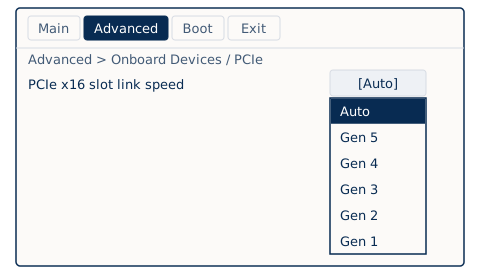
- Auto. The default and our recommendation.
- One generation lower, such as Gen 4. If your riser cable is rated for that generation, or a vendor tells you to.
| Source | What it says |
|---|---|
| Vendor documentation: AMD | Riser cables validated only for PCIe 3.0 can make PCIe 4.0 systems unstable; set the slot to Gen 3 in the BIOS as a workaround (AMD) |
| Vendor documentation: ASUS, Lian Li, Fractal Design | The same advice for their risers (ASUS, Lian Li, Fractal Design) |
| Vendor documentation: NZXT | Use Auto with its PCIe 4.0 riser on a PCIe 4.0 slot (NZXT) |
| Vendor documentation: ASUS | Set it back to Auto once a lower setting is no longer needed (ASUS) |
| Our recommendation | Set the slot to the generation your riser is rated for. For a PCIe 5.0 card on a riser rated for PCIe 4.0, that means Gen 4. We found no vendor document covering PCIe 5.0 risers |
One generation lower halves the link’s bandwidth. With the whole model on the card, that changes loading only once the file is in memory (the tables above). With weights in system memory, it doubles the extra time. Set it back to Auto once the cause is fixed (ASUS).
PCIe power management
Windows can put an idle PCIe link into a low-power state. The power plan setting is PCI Express › Link State Power Management, with Off, Moderate power savings and Maximum power savings (Microsoft). Many BIOSes have link power options of their own, named ASPM, such as PEG 0 ASPM on MSI Intel boards (MSI) and Platform Power Management on Gigabyte Intel boards (Gigabyte).
| Source | What it says |
|---|---|
| Vendor documentation: AMD, Microsoft | We found no AMD or Microsoft document that recommends turning it off to fix a Radeon card on Windows |
| Vendor documentation: AMD engineers, Linux | The Linux driver turns ASPM off for some older AMD cards, such as the WX3200 and RX640, on Intel Alder Lake systems, which hung during suspend and resume (Linux kernel mailing list). The driver also has an option to turn it off (Linux kernel docs). This shows it can cause hangs on some platforms; it is Linux and older cards, not Windows |
| Reported by users | Mixed. One user reports that turning Link State Power Management off ended random crashes (AnandTech forums). An owner of two Radeon AI PRO R9700 cards reports that power-management changes didn’t help, while rolling back the driver did (Level1Techs) |
| Our recommendation | Leave it at the default. Turn it off only as a test, when the problem shows up after the PC idles, sleeps or wakes, or when the link drops while the card is busy. Undo it if nothing changes |
To test it in Windows:
- Open the plan’s advanced settings. Control Panel › Power Options › Change plan settings for the plan in use › Change advanced power settings.
- Turn it off while plugged in. Expand PCI Express › Link State Power Management and set it to Off. On a laptop, change only Plugged in.
- Or use the command line. Run
powercfg /getactiveschemeto get your plan’s GUID, thenpowercfg /setacvalueindexwith that GUID,SUB_PCIEXPRESS ASPM 0, andpowercfg /setactivewith the same GUID (Microsoft). - Run your usual workload. If nothing changes, set it back to its earlier value. With it off, the link saves less power when idle.
When to ask a person
If the steps above don’t fix it, if WHEA errors keep appearing, or if the card disappears from Device Manager, the cause may be a faulty part. Contact the maker of the part you suspect. AMD asks for an Msinfo32 report and a DxDiag report (AMD). For a card you bought from us, contact us.
AMD driver
| Engine or card | Driver | Source |
|---|---|---|
| Vulkan engine | The Vulkan support built into AMD Software: Adrenalin Edition | Vendor documentation |
| HIP (ROCm) engine | The driver AMD lists for the ROCm release. AMD’s ROCm 10.0.0 compatibility matrix lists Adrenalin 26.8.1 on Windows 11 25H2; FastLLM’s HIP engine uses ROCm 10.0 | AMD |
| HIP (ROCm) engine | A CPU that supports PCIe atomics | AMD |
| Radeon AI PRO R9700 | AMD Software: PRO Edition, from AMD’s driver page for the card | AMD |
| Our test PCs | Windows 11 25H2 with Adrenalin 26.10.1, Minimal install | On our test PCs |
The installer offers Default, Minimal (basic controls, without performance tuning or recording) and Driver Only (no AMD Software interface) (AMD). Our test PCs use Minimal; Default works too. FastLLM shows driver guidance for your card. It never installs or changes a driver.
Windows settings
GPU timeout (TDR)
Windows resets the graphics driver when the GPU doesn’t finish or pause its work within a timeout (Microsoft):
- Timeout. The GPU doesn’t finish or pause its work within 2 seconds, the default.
- Reset. Windows resets the graphics driver. You see “Display driver stopped responding and has recovered”.
- Repeated resets. After five or more resets within one minute, Windows stops with a blue screen.
Registry keys such as TdrDelay change the timeout. Microsoft documents them for testing and debugging during driver development and says end users shouldn’t change them (Microsoft).
- Our recommendation: leave the timeout at the Windows default. FastLLM does not change it.
- On our test PCs, in the runs where we monitor driver resets, we have seen none.
- If you see resets while a model runs, treat them as a symptom and work through “Troubleshooting an unstable PC” above. A longer timeout doesn’t fix a stuck GPU: Windows just waits longer before recovering, so the screen stays frozen for longer. Editing the registry also needs administrator rights, and a wrong change can stop Windows from starting.
Other Windows settings
| Setting | Where | What vendors say | Our recommendation |
|---|---|---|---|
| Power mode | Settings, System, Power & battery: Best power efficiency, Balanced or Best performance (Microsoft) | No documented effect on local AI; not measured by us | Balanced or Best performance. If other apps use the model while you are away, set the PC not to sleep |
| Hardware-accelerated GPU scheduling | Settings, System, Display, Graphics (Microsoft) | AMD added support on RX 7900, 7800 and 7700 series cards in Adrenalin 23.12.1 (AMD); neither documents an effect on AI workloads; not measured by us | Leave it as it is |
| Fast Startup | On by default on PCs that can hibernate; Shut down then hibernates, Restart doesn’t (Microsoft) | Microsoft’s article was written for Windows 10 | Use Restart after a driver update or a card change |
| Memory integrity (VBS and HVCI) | On by default on new Windows 11 PCs | Microsoft says it and Virtual Machine Platform may reduce gaming performance in some configurations, and that turning them off may leave the PC vulnerable (Microsoft, archived copy); not measured by us | Leave memory integrity on |
Integrated graphics and second cards
| Situation | What happens | What to do |
|---|---|---|
| CPU with integrated graphics | By default, llama.cpp uses an integrated GPU only when it finds no discrete card (llama.cpp source) | Run the engine with --list-devices to see what it found, and choose with --device (llama.cpp docs) |
| A card with 8 GB or less | The desktop and other apps share the card’s memory with the model | Our recommendation: run your monitor from the CPU’s integrated graphics, if it has them, to leave more of the Radeon card’s memory for the model |
| Two or more Radeon cards | A model can land on a card you didn’t intend | Choose the card with --device; for the HIP engine, llama.cpp documents HIP_VISIBLE_DEVICES (llama.cpp docs) |
| FastLLM | It checks the installed card at each start, and its recipes today run one model on one card | We have not yet tested FastLLM on a PC with integrated graphics turned on |
System memory and the page file
- On our test PCs. They have 32 GB of system memory and run 27B models at about 4-bit on the RX 7900 XT and XTX. In early runs, Windows showed the engine process committing more system memory than the size of the model file.
- Our recommendation: plan system memory of at least the model file’s size, plus what Windows and your other apps use.
- Page file. Windows can’t commit more memory than its commit limit, which is system memory plus all page files. Page files are system-managed by default (Microsoft). Our recommendation: leave it system-managed. Don’t turn it off.
- Experts in system memory. llama.cpp’s
--cpu-moeand--n-cpu-moeoptions keep a mixture-of-experts model’s expert weights on the CPU side (llama.cpp docs). System memory then has to hold those weights, and its speed and the PCIe link matter more (see above). FastLLM’s recipes don’t use this today.
Cooling and power supply
AMD lists a board power and a minimum power supply for each card, based on its reference system, and says your requirements may differ (AMD RX 7900 XTX).
| Card | Board power | Power supply, at least | Source |
|---|---|---|---|
| RX 9060 XT 8GB | 150 W | 450 W | AMD |
| RX 9060 XT 16GB | 160 W | 450 W | AMD |
| RX 9070 | 220 W | 650 W | AMD |
| RX 9070 XT | 304 W | 750 W | AMD |
| RX 7800 XT | 263 W | 700 W | AMD |
| RX 7900 XT | 315 W | 750 W | AMD |
| RX 7900 XTX | 355 W | 800 W | AMD |
| Radeon AI PRO R9700 | 300 W | 750 W | AMD |
Prompt processing and text generation keep the card at high load for as long as a request runs, and a busy server can do that for hours. Our recommendation: use at least AMD’s recommended power supply, make sure the case has clear intake and exhaust airflow, and watch temperatures during a long run with a tool such as GPU-Z.
Settings by card
AMD lists the PCIe link on its specification pages for the RX 9000 and Radeon AI PRO cards below. It does not list one for RX 6000 and RX 7000 cards, so those rows use TechPowerUp’s GPU database. AMD’s RX 6000 cards are RDNA 2, its RX 7000 cards RDNA 3, and its RX 9000 and Radeon AI PRO R9000 cards RDNA 4 (AMD ROCm GPU specifications, AMD RX 6500 XT).
| Memory | Cards | PCIe link | Engine FastLLM would use | What to watch |
|---|---|---|---|---|
| 4 GB | RX 6400, RX 6500 XT | PCIe 4.0 x4 (TechPowerUp) | Vulkan; no Bitworks lab observation yet. FastLLM’s catalog lists Qwen3.5 2B and 4B models for this tier | The narrowest link: 3.9 GB/s on a PCIe 3.0 board. Little memory to spare. |
| 8 GB | RX 6600, RX 6600 XT, RX 6650 XT | PCIe 4.0 x8 (TechPowerUp) | Vulkan; no Bitworks lab observation yet | An x8 link: 7.9 GB/s on a PCIe 3.0 board. |
| 8 GB | RX 7600 | PCIe 4.0 x8 (TechPowerUp) | Vulkan; no Bitworks lab observation yet | An x8 link: 7.9 GB/s on a PCIe 3.0 board. |
| 8 GB | RX 9060 XT 8 GB, RX 9060 | PCIe 5.0 x16 (AMD) | Vulkan; no Bitworks lab observation yet | Little memory headroom. |
| 12 GB | RX 6700 XT, RX 6750 XT | PCIe 4.0 x16 (TechPowerUp) | Vulkan; no Bitworks lab observation yet | Resizable BAR. |
| 12 GB | RX 7700 XT | PCIe 4.0 x16 (TechPowerUp) | Vulkan; no Bitworks lab observation yet | Resizable BAR. |
| 12 GB | RX 9070 GRE | PCIe 5.0 x16 (AMD) | Vulkan; no Bitworks lab observation yet | Riser generation. |
| 16 GB | RX 6800, RX 6800 XT, RX 6900 XT, RX 6950 XT | PCIe 4.0 x16 (TechPowerUp) | Vulkan; no Bitworks lab observation yet | Resizable BAR. |
| 16 GB | RX 7600 XT | PCIe 4.0 x8 (TechPowerUp) | Vulkan; no Bitworks lab observation yet | An x8 link: 7.9 GB/s on a PCIe 3.0 board. |
| 16 GB | RX 7800 XT, RX 7900 GRE | PCIe 4.0 x16 (TechPowerUp) | Vulkan; no Bitworks lab observation yet | Resizable BAR. |
| 16 GB | RX 9060 XT 16 GB, RX 9070, RX 9070 XT | PCIe 5.0 x16 (AMD) | Vulkan; no Bitworks lab observation yet | Riser generation. |
| 20 GB | RX 7900 XT | PCIe 4.0 x16 (TechPowerUp) | HIP by default, Vulkan fallback; candidate recipes with a Bitworks lab observation | Driver version for HIP. |
| 24 GB | RX 7900 XTX | PCIe 4.0 x16 (TechPowerUp) | HIP by default, Vulkan fallback; candidate recipes with a Bitworks lab observation | Driver version for HIP. |
| 32 GB | Radeon AI PRO R9700, R9700S, R9600D | PCIe 5.0 x16 (AMD) | Vulkan; no Bitworks lab observation yet | PRO Edition driver; system memory for large models. |
Resizable BAR matters on every row that uses the Vulkan engine. The RX 7900 GRE uses the same chip family as the RX 7900 XT and XTX (gfx1100), but FastLLM has no recipe for it yet, so it runs on Vulkan. The GPU pages for the cards Bitworks covers have a short setup section of their own.
What this page can’t tell you
Sources and trademarks
- llama.cpp source at the two builds FastLLM uses: b10698 (Vulkan) and b11658 (HIP).
- Model configurations: Qwen3.8-27B, Qwen3.5-9B, Qwen3.6-35B-A3B. GGUF files are third-party conversions by Unsloth.
- BIOS screenshots: ASRock, How to enable C.A.M in the BIOS? Also known as Resizable BAR., used to show the settings, cropped, with credit. Other drawings and charts are by Bitworks.
- Troubleshooting: AMD, Troubleshooting Tips for Resolving System Stability Issues; MSI, MAG X870 TOMAHAWK WIFI BIOS notes; Microsoft, Link State Power Management. User reports are linked where they appear and are not reproduced by us.
- AMD, Radeon, Ryzen and Smart Access Memory are trademarks of Advanced Micro Devices, Inc. ASRock, ASUS, Gigabyte, MSI and NVIDIA are trademarks of their respective owners. Windows is a trademark of Microsoft Corporation. Other names are used only to identify products.